
Password Lock requires visitors to enter a password before they can download a file. You can protect one download with its own password or apply one password to every download on your site.
Requirements
- Download Monitor 5.3.0 or newer
- Download Monitor Pro 1.1.0 or newer, installed and active
- At least one published download
Protect an individual download
- In the WordPress dashboard, go to Downloads > All Downloads.
- Edit the download you want to protect.
- In the Download Options panel, enable Ask for a password.
- Enter the password visitors must use.
- Click Update or Publish.
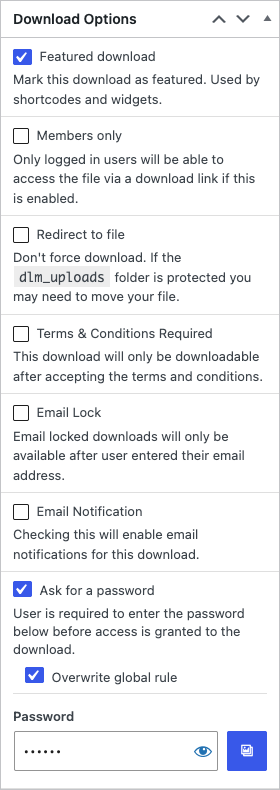
The standard download URL can no longer start the download until the visitor submits the correct password.
Apply one password to all downloads
- Go to Downloads > Settings > Content Locking > Password Lock.
- Enable Enable for all downloads.
- Enter the global password.
- Click Save.
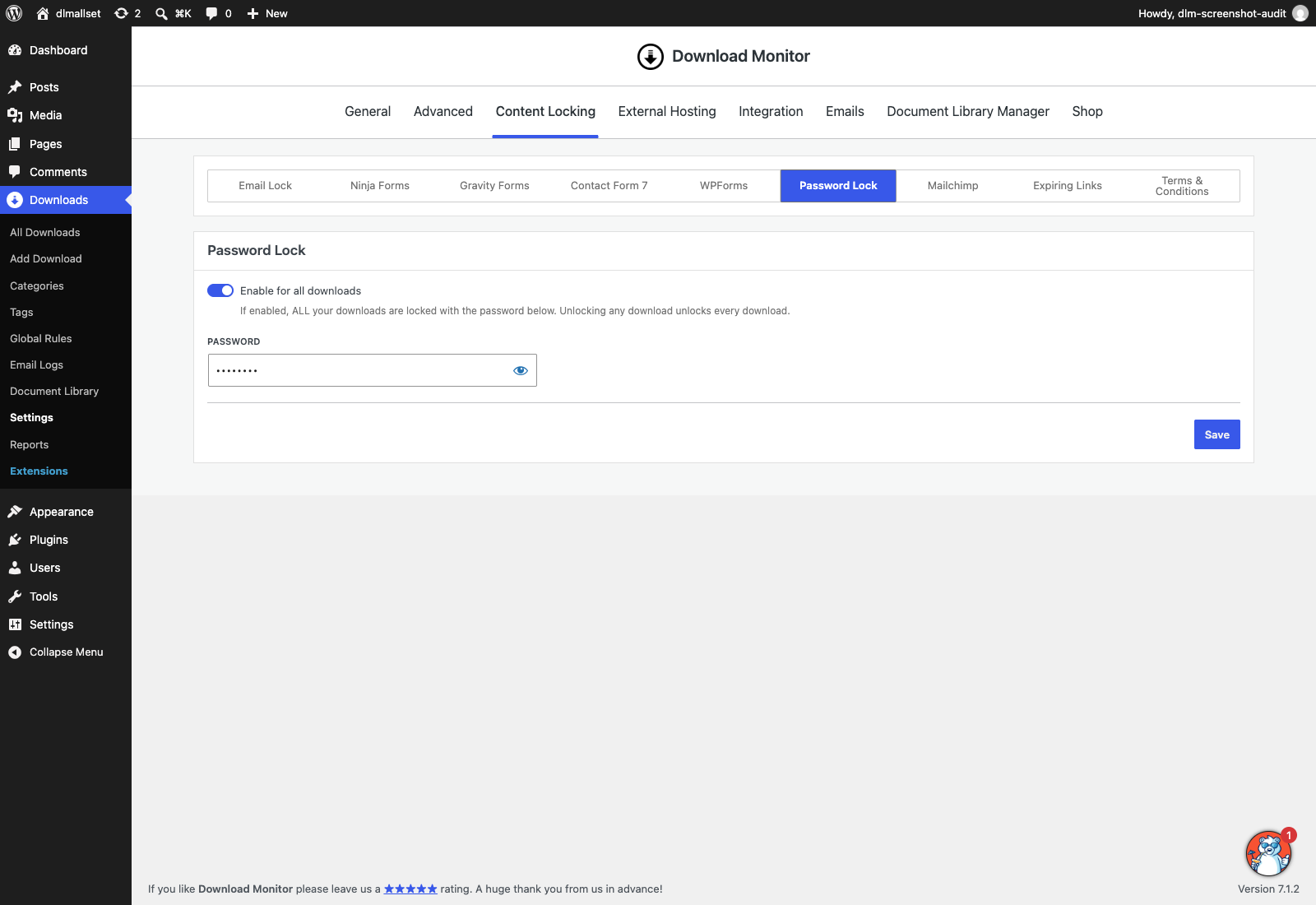
The global setting protects every download. After a visitor unlocks one download with the global password, all globally protected downloads are unlocked for that visitor.
Override the global password for one download
- Edit the download.
- Enable Ask for a password.
- Enable Overwrite global rule.
- Enter the download-specific password.
- Click Update.
Display the password form in a page or post
You can add an inline password form with the block editor or a shortcode.
Use the Download Password Lock block
- Edit the page or post where you want to display the protected download.
- Add the Download Password Lock block.
- In Locked download, select the download you protected.
- Publish or update the page.
If no downloads appear in the selector, first enable Ask for a password on a download or turn on the global password setting.
Use the shortcode
Add the following shortcode and replace 123 with the download ID:
[dlm_password_lock id="123"]The inline form is replaced by the real download button after the visitor enters the correct password.
Use Password Lock with a regular download button
You can also display the download with a standard Download Monitor link or the Download Button block. When a visitor clicks it without access, Download Monitor applies your configured no-access behavior.
To show the password form in a pop-up, enable the No Access Modal under Downloads > Settings > Advanced > Pages. If the modal is disabled, Download Monitor uses the configured No Access page.