
The MailChimp Lock for Download Monitor allows you to require users to be subscribed to your MailChimp list before they gain access to a download.
Installation
- Unzip and upload the plugin’s folder to your /wp-content/plugins/ directory
- Activate the extension through the ‘Plugins’ menu in WordPress
For more information on installing and managing plugins see here.
Usage
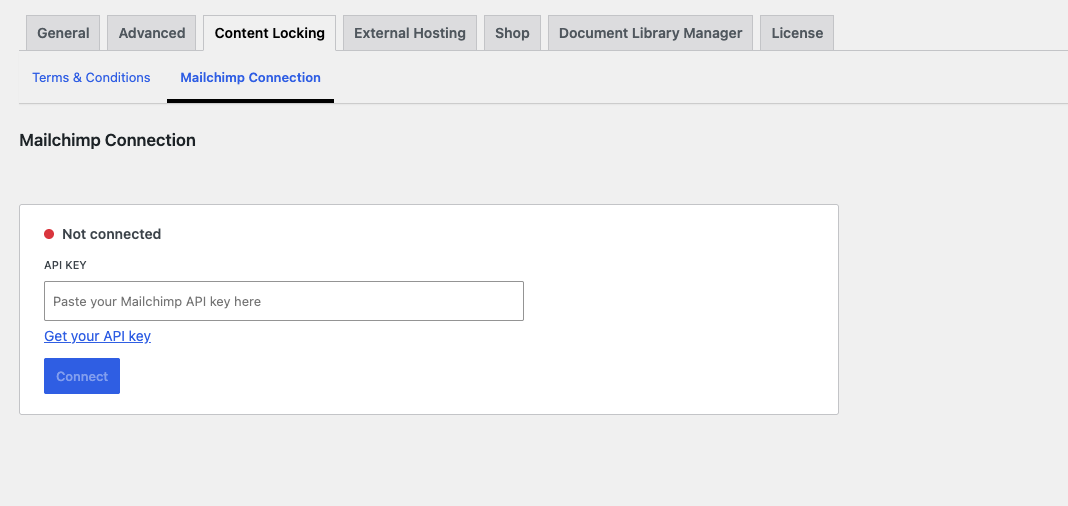
After installing and activating the Download Monitor: MailChimp Lock extension, you need to connect to your Mailchimp account. This can be done from Downloads > Settings > Content locking > Mailchimp Connection, enter your Mailchimp API Key, then click Connect.
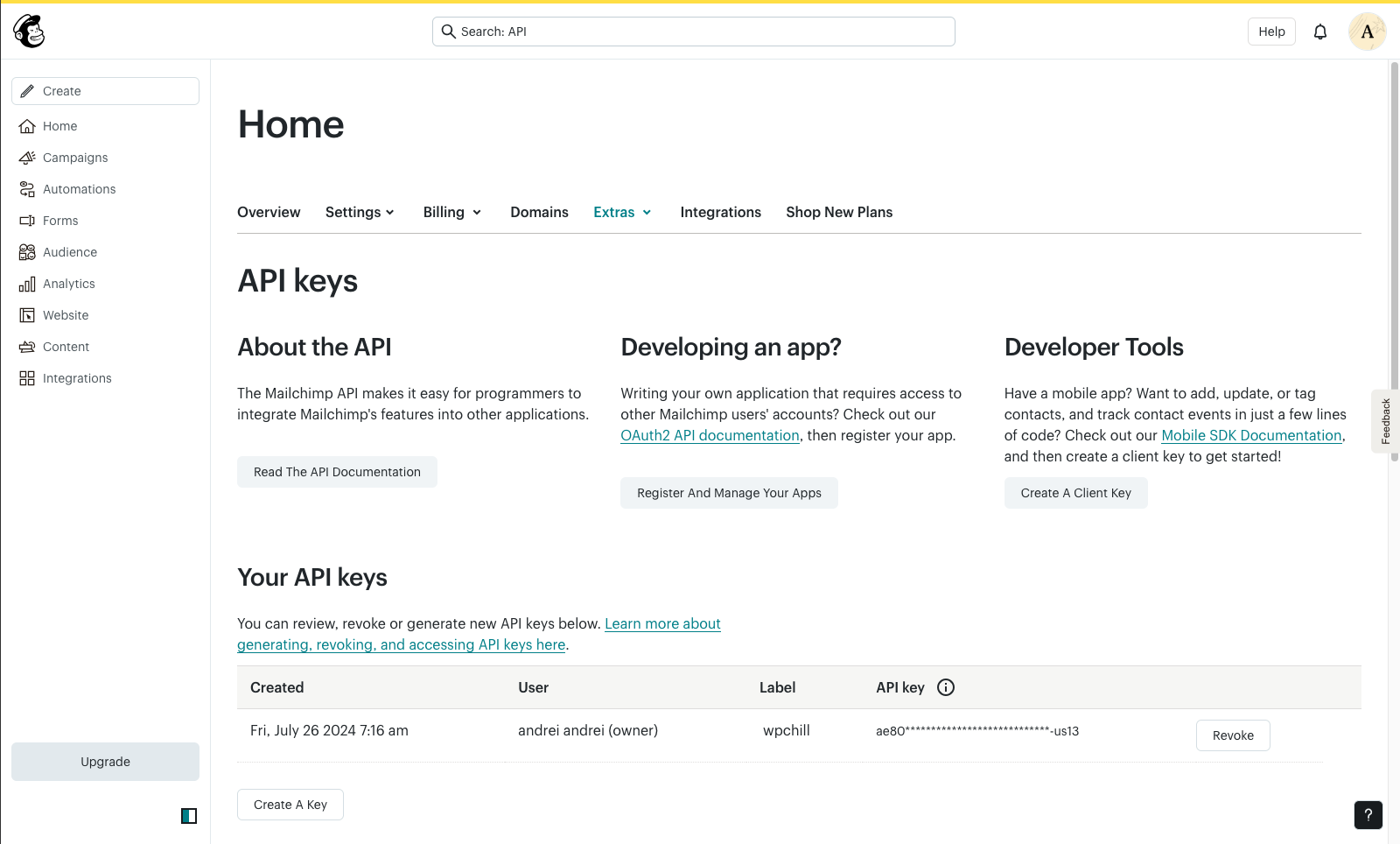
The API Key can be easily retrieved from your Mailchimp account using the link we provide:
After the connection is established, go to your WordPress dashboard > Downloads > edit your download or create a new one > Download options > check the ‘Subscribers only‘ option and select your MailChimp list.

Now, only people who are subscribed to the selected MailChimp list are allowed to download.
Provide subscribers with the download link
After people subscribe, you can send them the download link in your confirmation email or, if you have double opt-in disabled, in your final welcome email.
Both emails can be edited by logging into your MailChimp account and then browsing to Mailchimp > Audience > Audience dashboard > Manage audience (on the right side of the page) > Signup Forms from there you can select the email from the drop-down to edit it.

Provide existing subscribers with the download URL
You can provide your subscribers with a unique download URL from your MailChimp Campaigns. To do so, grab your download URL 9dashboard > Downloads > edit download > Download information) and append the following.
https://download-link/?email=*|EMAIL|*
MailChimp will automatically replace the `*|EMAIL|*` part with the email address of the receiver. A complete unique download URL will look something like this.
https://your-wordpress-site.com/download/321/?email=johndoe@email.com
If your visitor has used a MailChimp for WordPress form to subscribe then even the download URL without the additional email parameters will do the trick.
https://your-wordpress-site.com/download/321/
Customer Usage
If you’ve followed the above steps in the Usage section your MailChimp Lock is ready to be used. Visitors will have to complete the select MailChimp form before gaining access to the download.