
Expiring Links lets you generate private download URLs that stop working after a specified time or number of uses. Use them when a file should be available temporarily instead of through a permanent download link.
Requirements
- Download Monitor 5.3.0 or newer
- Download Monitor Pro 1.1.0 or newer, installed and active
- At least one published download
Configure the defaults
- Go to Downloads > Settings > Content Locking > Expiring Links.
- Configure the settings:
Private Link Endpoint controls the URL prefix used by generated links. For example, an endpoint ofprivatecreates links underexample.com/private/{token}/.
Default link duration (hours) sets how long new links remain active when a download does not use a custom expiration.
Default max uses limits successful uses of a link. Leave it empty for unlimited uses during the active period.
Expired link page optionally redirects visitors who use an expired or invalid link to a page you select.
Delete expired links after (days) controls when expired records are permanently removed. - Click Save Changes.
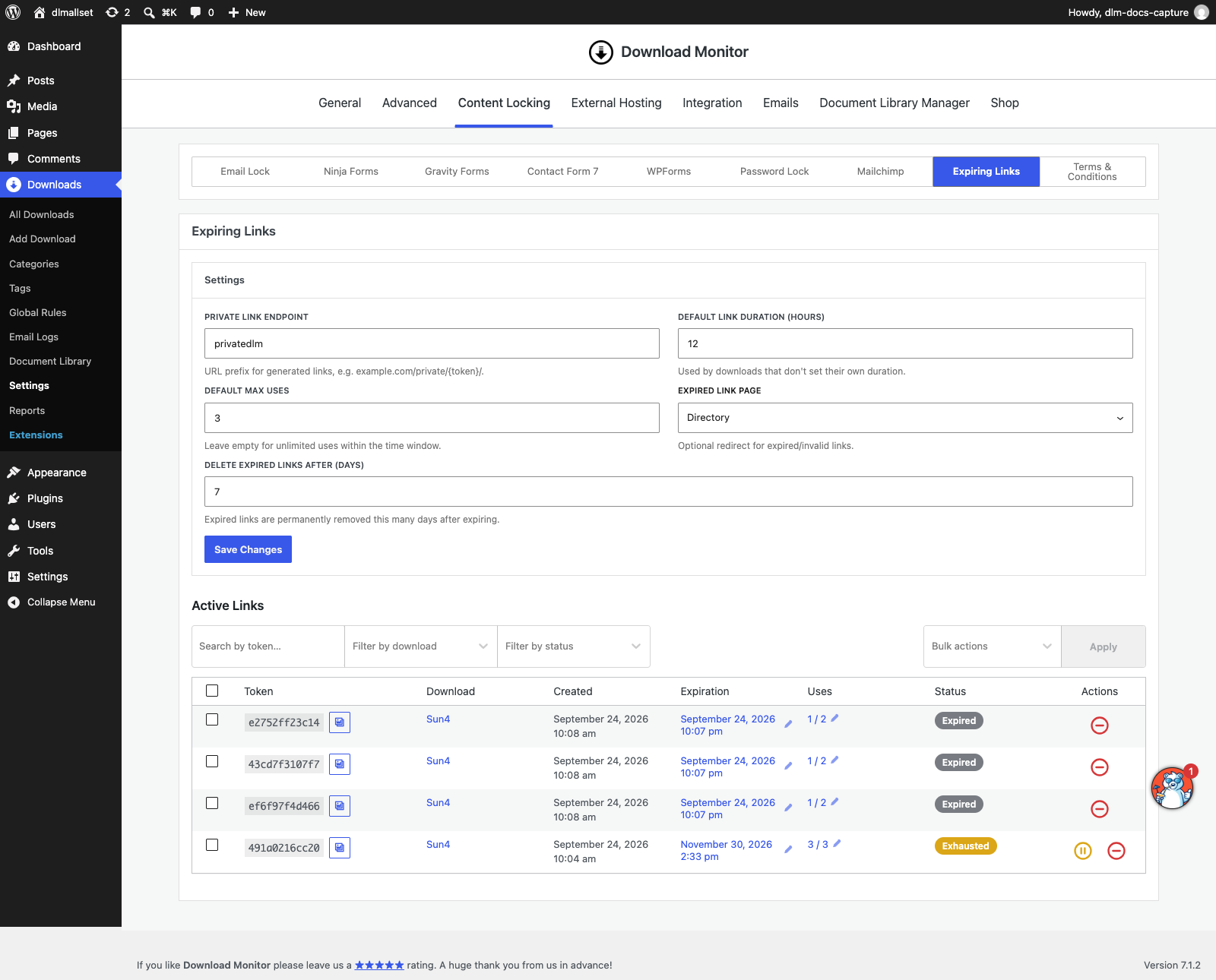
Changing these defaults does not retroactively change links that have already been generated. You can edit an existing link from the Active Links table.
Generate an expiring link
- Go to Downloads > All Downloads and edit a download.
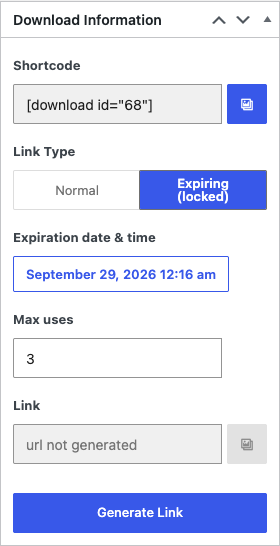
- In Download Information, set Link Type to Expiring (locked).
- Choose the Expiration date & time.
- Enter Max uses, or leave it empty for unlimited uses until the expiration time.
- Click Generate Link.
- Click Copy next to the generated link.
- Click Update to save the download settings.
Generate a replacement link
Open the download and click Generate New Link. Generating a new link does not require you to change the global defaults. Copy the new URL and distribute it to the intended recipients.
Manage generated links
Go to Downloads > Settings > Content Locking > Expiring Links and use the Active Links table to:
- Search by token
- Filter by download or status
- Copy a private link
- Edit its expiration time
- Edit its maximum number of uses
- Disable or re-enable it
- Delete it permanently
The table reports the link’s current use count and one of these statuses:
- Active: the link can still be used.
- Expired: its expiration time has passed.
- Exhausted: it reached its maximum number of uses.
- Disabled: an administrator disabled it manually.
What counts as a use
A use is recorded when Download Monitor successfully starts the protected download. Opening a link that has already expired, is disabled, or has reached its limit does not grant access.
Troubleshooting
The private link returns a 404 error
- Confirm that the download is published.
- Check the Private Link Endpoint for typing errors.
- Go to Settings > Permalinks and click Save Changes to refresh WordPress rewrite rules.
- Clear page, object, and proxy caches.
The normal download URL no longer works
This is expected when Link Type is Expiring (locked). Use a generated private link, or change Link Type back to Normal and update the download.
A link stopped working earlier than expected
Check its status and Uses value in the Active Links table. A link becomes unavailable as soon as either its expiration time or maximum-use limit is reached.
Visitors see the wrong expired-link page
Return to the Expiring Links settings, select the correct Expired link page, and save. Clear caches if an older redirect is still being served.