Divi Builder is a popular, no-code, drag-and-drop visual page builder for WordPress. It enables users to create custom websites in real-time on the front end, without needing to write a single line of code.
Introducing the Document Library Manager Divi Module.
The Document Library Manager is a premium add-on for Download Monitor, one of the most popular WordPress plugins for managing downloadable files. The add-on extends Download Monitor with a powerful library view — and its Divi module brings that library view directly into the Divi Builder.
Instead of relying on shortcodes or PHP templates, you simply drag the module onto your page and configure it visually, right inside the Divi editor. No coding required.
What are the advantages of the Divi module?
- No code needed. Everything is configured through Divi’s familiar options panel — dropdowns, toggles, and number fields.
- Instant visual feedback. Changes to your layout, columns, or filters appear immediately in the Divi canvas.
- Two layout options. Switch between a table view (great for dense lists of files) and a grid view (better for visual, card-style browsing).
- Works with your existing downloads. Any file you’ve already added to Download Monitor will be available to display right away.
What You Need Before Getting Started
Before adding the module to your page, make sure you have the following in place:
- Download Monitor (free) — the core plugin, installed and activated.
- Download Monitor Pro — required to unlock advanced features used by the add-on.
- Document Library Manager add-on — the add-on that provides the Divi library module.
- Divi Builder— installed and activated on your site.
Once all four are active, you’re ready to go.
How to Add the Document Library Manager Module in Divi
Follow these steps to get your download library live on a Divi page.
Step 1: Make Sure Your Downloads Are Ready
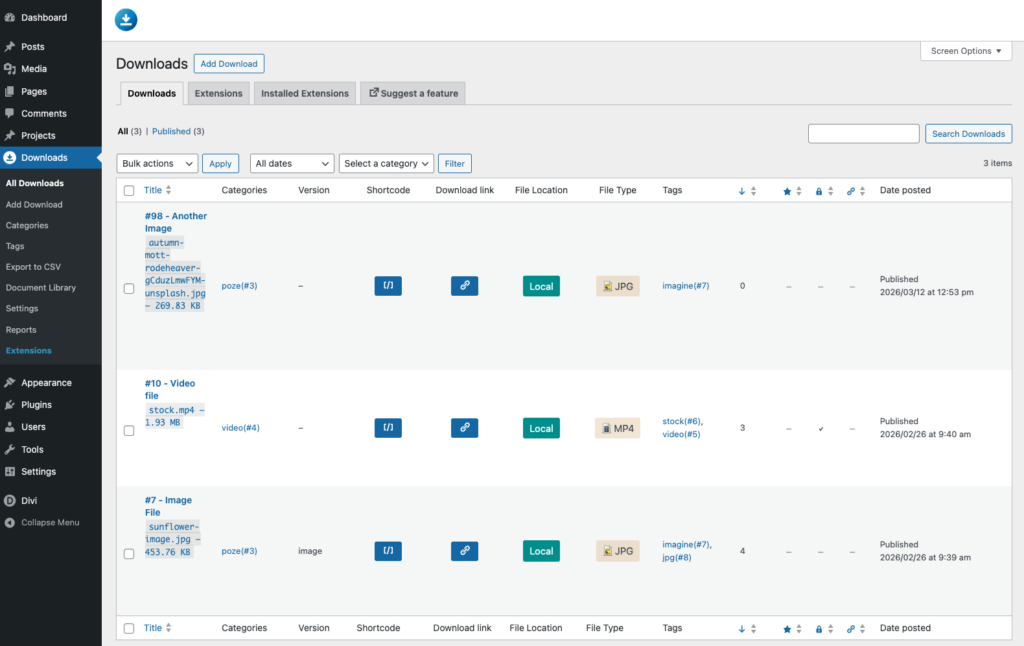
Before building the page, create the downloads you want to display. Go to Downloads → Add New Download in your WordPress dashboard and upload your files (or link to external files). Give each download a title, and optionally assign it to a category or tag — you’ll be able to filter by these later.
If you already have downloads in Download Monitor, you can skip this step entirely.
Step 2: Open Your Page in Divi
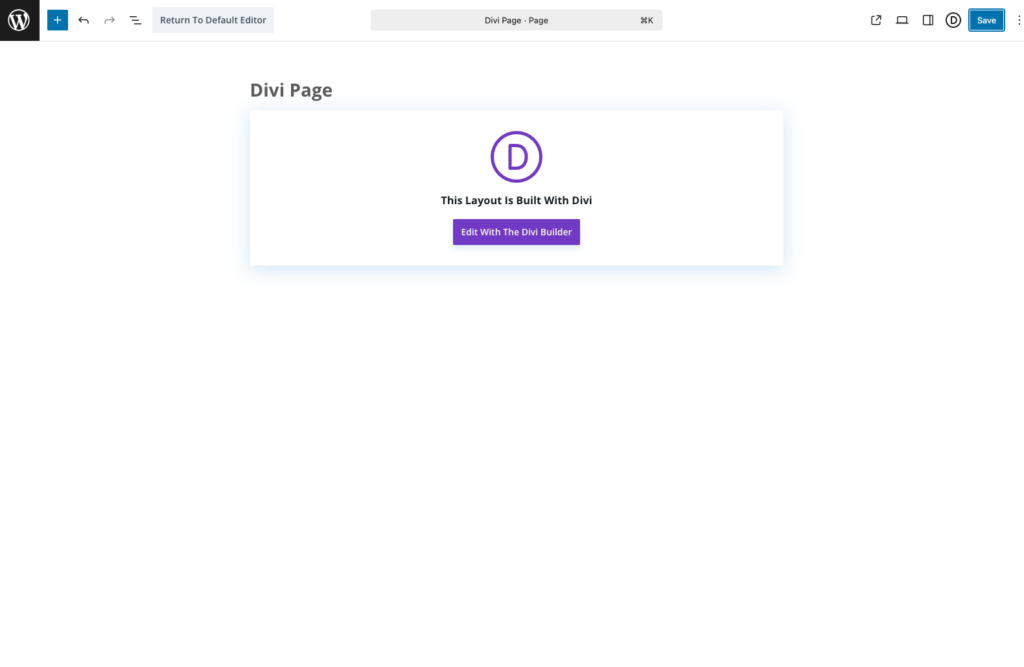
Create a new page or open an existing one, then click Edit with The Divi Builder. Once you’re in the Divi editor, you’ll use the module search to find the Document Library Manager module.
Step 3: Find and Add the Module
Click the + icon to insert a new module, then search for “Downloads Listing” — the Document Library Manager module will appear. Click it to add it to your page.
You’ll immediately see a preview of your download library appear in the canvas. By default, it will pull in all of your existing downloads.
Step 4: Configure the Module Settings
With the module selected, the settings panel will show all the available options. Here’s what you can control:
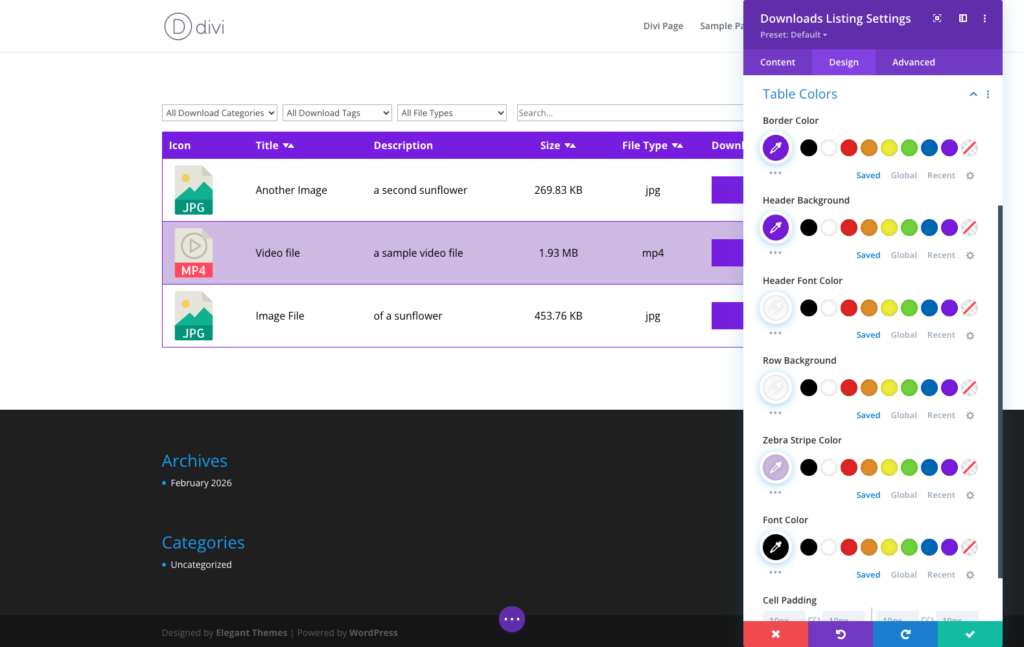
- Base settings.
Select between the Table and Grid view. Table view organizes downloads in rows and columns — ideal for document-heavy pages where users need to scan through many files. Grid view shows each download as a card — better for image-rich or visually organized libraries.
Select the Categories and Tags used by the listing.
Select the text direction. - Data Filters & Search.
Enable filtering and search options for the library listing. - Pagination & Count.
Enable pagination for the library and control the number of downloads shown on each page. - Design.
Fully control how your table or grid library will appear. Select feature images or icon display for the documents, buttons, border colors, and more.
Step 5: Publish Your Page
Once you’re done configuring the layout and style, hit Publish (or Save if editing an existing page).
Your visitors can now browse, search, and download files directly from the page — no developer needed, no shortcodes, no guesswork.
Who Is This Module For?
The Document Library Manager Divi module is a great fit for anyone who needs to share downloadable files on a WordPress site without building a custom solution. Some common use cases:
- Businesses sharing resources. Product guides, spec sheets, onboarding documents, or sales materials.
- Educational sites. Lesson plans, worksheets, course handouts, or reading lists.
- Nonprofits and associations. Annual reports, forms, policies, and member resources.
- Agencies and freelancers. Delivering client files, brand assets, or project deliverables through a clean portal.
- Software companies. Documentation, release notes, or plugin and theme downloads.
Ready to Try It?
If you’re already using Divi to build your WordPress site, the Document Library Manager module is one of the easiest ways to add a professional download library — no developer needed, no shortcodes, no guesswork.
Get started today by visiting the Download Monitor pricing page to find the right plan for your site.